
From your first terminal to a workspace that travels
Practice one task: ask an agent to improve a README, review the change, then check it from another device. Chapter 1 takes about 5 minutes, chapters 1–3 about 25, and remote access another 15–25. You can stop after any chapter. This website does not run Herdr or keep terminals alive.
1. Start here: see your own work locally
Browser / PWA -> Roamgate (HTTP + WebSocket) -> Herdr -> shell / agent
Herdr owns the terminals, Roamgate is the browser UI, and agents remain CLIs. Roamgate does not provide models or install agents. Closing the browser leaves terminals running; sleeping or shutting down the host stops them.
- Start Herdr with a trusted project open (herdr.dev), or
run
roamgate herdr setupafter installing Roamgate. - Run
roamgate(roamgate.exeon Windows) on the same computer and leave it running. Plugin users use the start action and get the URL from the plugin panel. - Open the printed URL on that computer and log in with your password or the
token from the file the bridge reports. Pick a workspace and an idle shell,
then run
pwd(Get-Locationin PowerShell).
You are done when: the terminal shows your project directory.
Login is required even on 127.0.0.1:8787 (only the loopback development
server skips it); see Security. Upgrading from Herdr Studio? Follow the
migration guide
first.
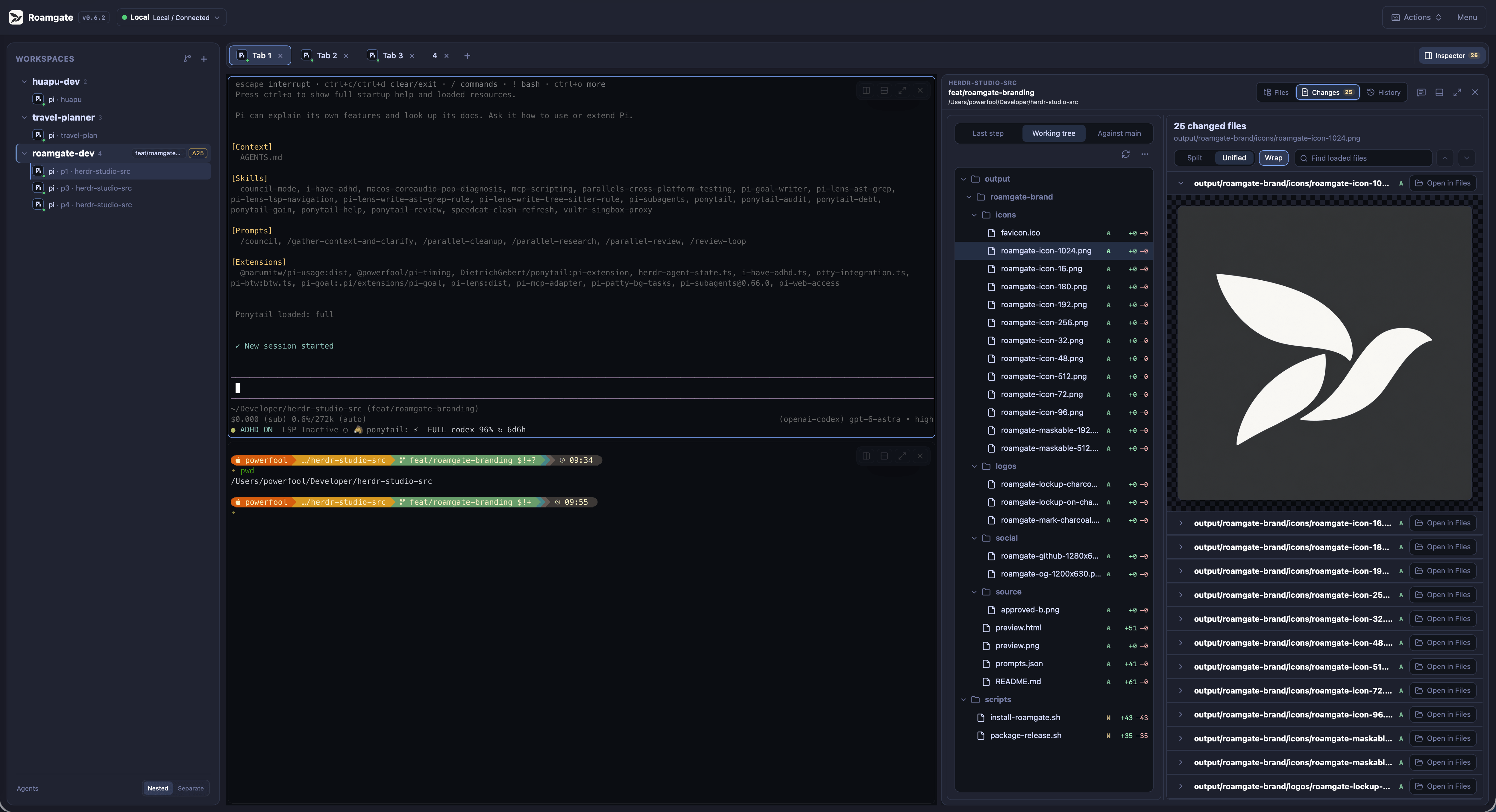
| Object | Meaning |
|---|---|
| Workspace | A working environment, usually a project directory |
| Tab | A layout within a workspace |
| Pane | One terminal in a tab |
| Worktree | A separate Git checkout directory and branch |
Splitting panes does not isolate files. Use worktrees for parallel edits.
2. Everyday work: verify what the agent changed
Give the agent one task
- Select your project, create a tab, and split it right from the pane menu.
- Start an installed, signed-in agent on the left; keep a shell on the right.
- Paste this prompt, review it, and submit it yourself (model usage may cost money):
Read this project's README and add a short first-run example.
Check the project's actual commands first; do not invent flags.
Modify only the README. Do not install dependencies, commit, or push.
When finished, explain what changed and what you have not actually verified.
Use the command menu to find workspaces, files, tabs, panes, and agents, and the recent pane switcher to jump between panes. See shortcuts.
You are done when: you can find the agent's explanation in Agent
History. A done status does not mean checks passed. Missing history? See
session inspection.
Review the file and diff
- Open File Explorer, select
README.md, and switch between rendered and source views. - Open Diff Viewer > Working tree and read the changed lines.
- Search (
Cmd/Ctrl+F) for the new command and check it against the project.
You are done when: you can point to the change and confirm its command works.
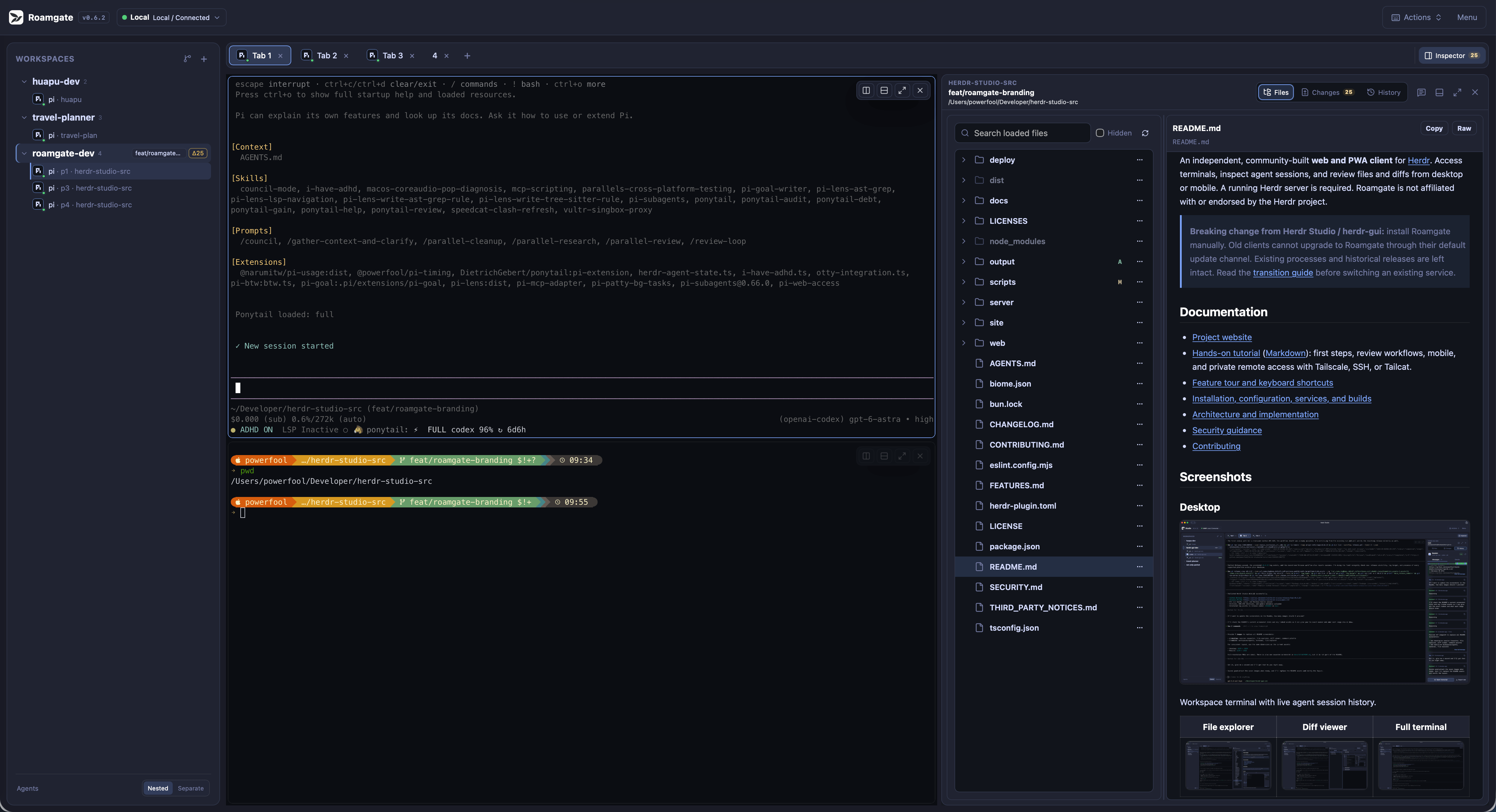
Uploads, deletions, and SSH file operations change real files on the target host.
Send precise feedback
- Click or drag diff line numbers and add a comment, such as "Use the dev command in package.json."
- Review it in Annotations, then pre-fill the agent pane's input.
- Check the message in that pane and press Enter yourself.
You are done when: the agent receives your feedback with its context. Pre-fill never submits. Drafts stay in this browser.
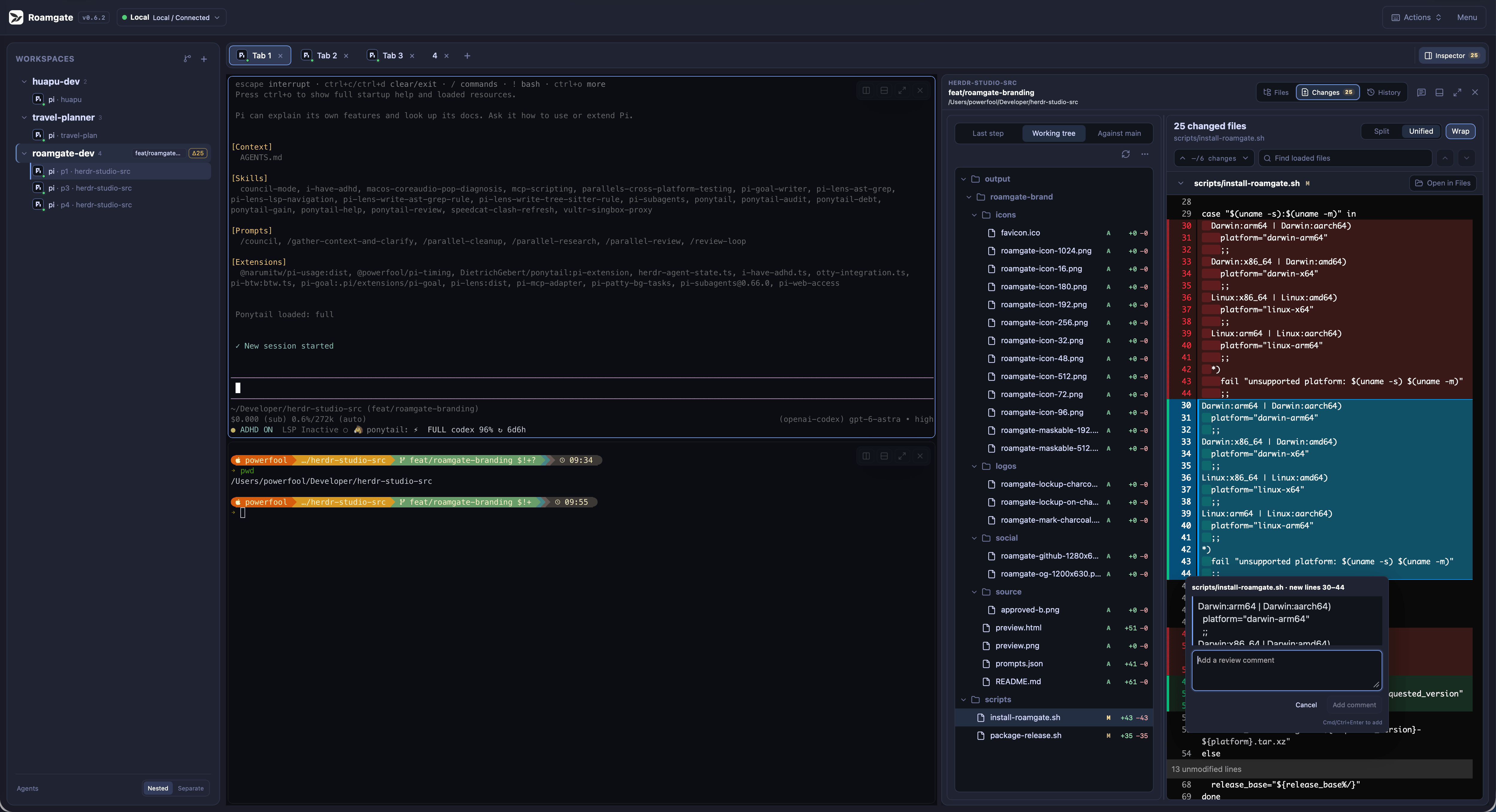
No commit is needed for this exercise. Discard Unstaged loses changes and Delete Untracked deletes files; confirmation is not a backup.
3. Parallel work and mobile access
Separate parallel edits with worktrees
- Make sure
originis reachable. Reviewroamgate.json(or legacypaseo.json): its hooks are on by default and run on the host. Disable Worktree hooks if you do not trust them. - Open Worktree Lifecycle and create a worktree. It starts from
origin's latest default branch and does not copy uncommitted files. - Run
pwdandgit statusthere before starting another agent.
You are done when: parallel tasks use different directories and branches. Save wanted results before removing a worktree; a failed teardown hook blocks removal.
Continue from your phone
Set up Tailscale + Serve first: 127.0.0.1 on a phone means the
phone itself.
- Open Roamgate's HTTPS URL on your phone, log in, and select your pane.
- Use the floating shortcuts for Ctrl and arrow keys, and open Changes to review the diff.
- Adjust Configuration > Appearance scale or terminal font size if needed, then install the PWA:
| Browser | Install action |
|---|---|
| iPhone/iPad Safari | Share > Add to Home Screen |
| macOS Safari 17+ | File > Add to Dock |
| Chrome/Edge | Browser menu > Install app |
You are done when: the home-screen icon opens your project. Install your Roamgate URL, not this tutorial site.
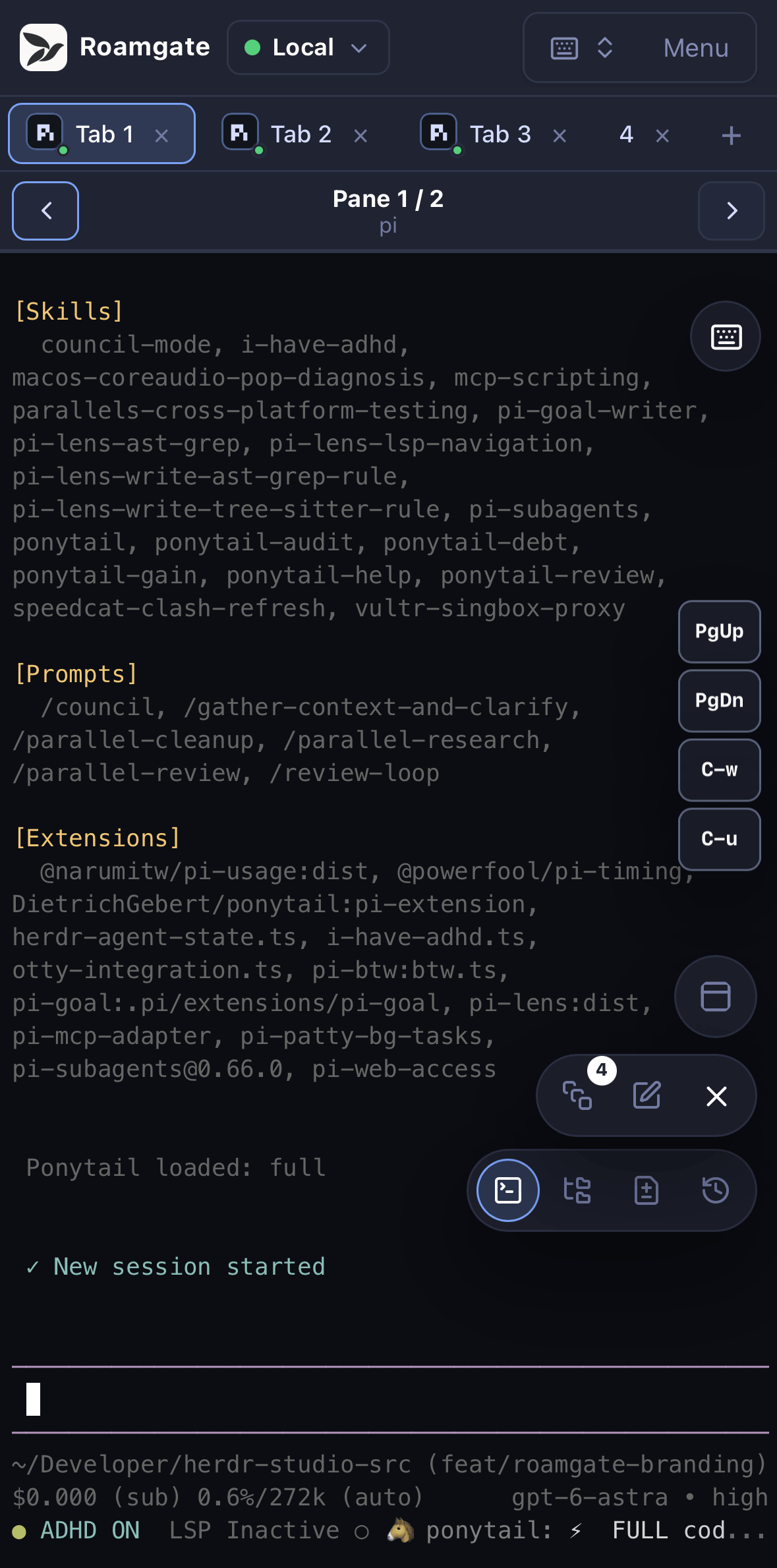
A PWA is not offline access: host sleep, a stopped service, or lost VPN interrupts it. Notifications are best-effort. Everyone you let in has full terminal and file access, so do not share the URL like a read-only link.
4. Remote access: choose the right connection
| Goal | Route |
|---|---|
| Regular phone/computer access | Tailscale + Serve |
| Local Roamgate controlling a remote Herdr | SSH profile (Linux/macOS bridge) |
| Another computer using a remote Roamgate | SSH port forwarding |
| Temporary access between your own computers | Tailcat |
None of these need router port forwarding.
Safety checks
- Admit only fully trusted people and devices.
- Login is still required behind any tunnel; keep the password or token private.
- Use HTTPS or an encrypted tunnel and restrict who can connect. See Security.
- Keep passwords, token URLs, and Tailcat addresses out of screenshots, issues, chats, and committed files.
Tailscale + Serve: regular private access
Tailscale connects your devices privately; Serve gives Roamgate an HTTPS address reachable only inside your tailnet.
-
Install Tailscale on both devices, join the same tailnet, and check
tailscale status. -
Restrict access to the intended users and devices on port 443.
-
On the Herdr host, run Roamgate on loopback:
roamgate --host 127.0.0.1 --port 8787If a service already runs it, set
HOST=127.0.0.1in its environment file and runroamgate service restartinstead of starting a second copy. -
If
tailscale serve statusshows port 443 at/is free, run:tailscale serve --bg --https=443 http://127.0.0.1:8787Approve the HTTPS certificate prompt. Hostnames appear in public certificate logs, so avoid sensitive names.
-
On your phone (with Tailscale on), open the printed HTTPS hostname, log in, and run
pwd. Confirm devices outside your access rules cannot connect.
You are done when: it works over cellular and excluded devices are denied.
Serve is private; Funnel is public. Never use funnel here. To stop
sharing:
tailscale serve --bg --https=443 off
tailscale serve status
Avoid tailscale serve reset, which clears all Serve settings. For daily use,
run Roamgate as a user service on
loopback.
SSH: remote Herdr or remote web interface
Option A: local Roamgate, remote Herdr (needs a Linux/macOS bridge; the remote host can be Unix or Windows).
- Make sure plain
sshworks non-interactively, put keys, ports, and jump hosts in~/.ssh/config(for example aliasworkbox), and start Herdr remotely. - In Roamgate's connection selector, add an SSH profile with destination
workboxand the remote OS. Leave Unix socket paths empty. For Windows, see requirements. Connect and runpwd.
Or start a dedicated bridge for that host:
roamgate --ssh-host workbox --host 127.0.0.1
Files, Git, uploads, and hooks then run on the remote host.
Option B: forward a remote Roamgate's web port. Both services stay remote; this also works with Windows OpenSSH. On the visiting computer:
ssh -N -o ExitOnForwardFailure=yes -L 127.0.0.1:18787:127.0.0.1:8787 workbox
Open http://127.0.0.1:18787 on that computer and log in with the remote
host's credential. Ctrl+C stops forwarding.
Tailcat: temporary access between trusted computers
Tailcat is an experimental Tailscale tool that connects two computers without a tailnet account. It has no access policies and this project has not verified it end to end. Use Tailscale for phones.
-
Run Roamgate at
127.0.0.1:8787on your work computer and check it locally. -
In another terminal there, run:
tailcat serve --key=new 8787 -
Privately send the printed
tc...address to the visiting computer and run:tailcat forward tcREPLACE_WITH_PRIVATE_ADDRESS 18787:8787Keep it on
127.0.0.1; never add--bind=0.0.0.0. -
Open
http://127.0.0.1:18787, log in, and runpwd. -
Press Ctrl+C in both terminals and confirm the URL stops working.
You are done when: access works and ends when forwarding stops. Treat the address as a secret: it contains a key. See Tailcat's security model.
5. Troubleshoot the hop that failed
Check in order:
- On the Roamgate host, run
curl -fsS http://127.0.0.1:8787/healthz(curl.exein PowerShell). If refused, check the process, port, or service. - Open the page locally. If terminals fail, check Herdr, the selected connection, and the logs before touching the network.
- Once local access works, check the route:
tailscale serve status, the SSH forward, or both Tailcat processes. - If typing fails, check the selected pane and that your proxy supports WebSockets.
| Symptom | First check |
|---|---|
Phone cannot reach localhost | Use Serve's HTTPS hostname. |
| Password set but no login page | Try a private window; an existing cookie or token URL may have logged you in. |
Login returns 429 | Wait for Retry-After; clients behind one proxy share login limits. |
| Address already in use | A service or plugin may already run Roamgate. |
| SSH history is empty | Check session lookup limits. |
| Clipboard or PWA restricted | Use trusted HTTPS without certificate warnings. |
roamgate doctor checks most of this automatically. See
Deployment for tokens, services, and debug logs. Never
disable authentication or open the firewall wide; share only redacted logs when
asking for help.
Completion check
- I know which workspace, tab, and pane receives my input.
- I reviewed the actual diff; an agent's "done" is not verification.
- I know which host receives file and Git operations.
- For remote access, I know who can connect and how to stop sharing.
References
Features and shortcuts · Deployment · Security · Architecture · Tailscale Serve · Serve CLI · Tailcat
This Markdown is the canonical tutorial; the Pages build renders it to HTML.